Yes, SolidCraft can import an image and let you sketch over it. The feature is called Canvas, just like in Fusion 360. You drop a PNG or JPEG onto a sketch plane, scale it to real size with Calibrate, and trace it with the normal sketch tools. We tested every step below in the free browser version (v0.16.1, October 2026), which you can run at the top of this page.
The example image is a hand-drawn L-shaped bracket with a 100 mm reference line, the kind of thing you'd get from a photo of a paper sketch or an old drawing.
1. Start a sketch and choose Canvas
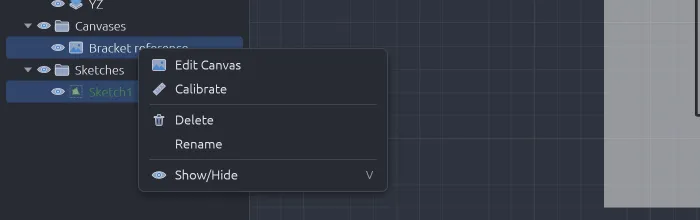
Create a new design, click Create Sketch and pick a plane (for a flat part, XY). Inside the sketch, open SKETCH › INSERT on the toolbar. It lists Insert DXF, Insert SVG, Canvas, Decal and Edit Canvas.

Click Canvas and choose your PNG or JPEG. In the browser version a small "Files in this browser" window opens first: click Insert from computer… and pick the image.
Canvas is only in the SKETCH tab. The INSERT menu on the SOLID tab has fasteners, STEP and meshes, but no canvas.
2. The image lands on your sketch plane
The image appears centred on the origin, 100 mm wide and 50% transparent by default, so the grid and your sketch lines stay visible through it. It also shows up in the Browser panel under a new Canvases folder.
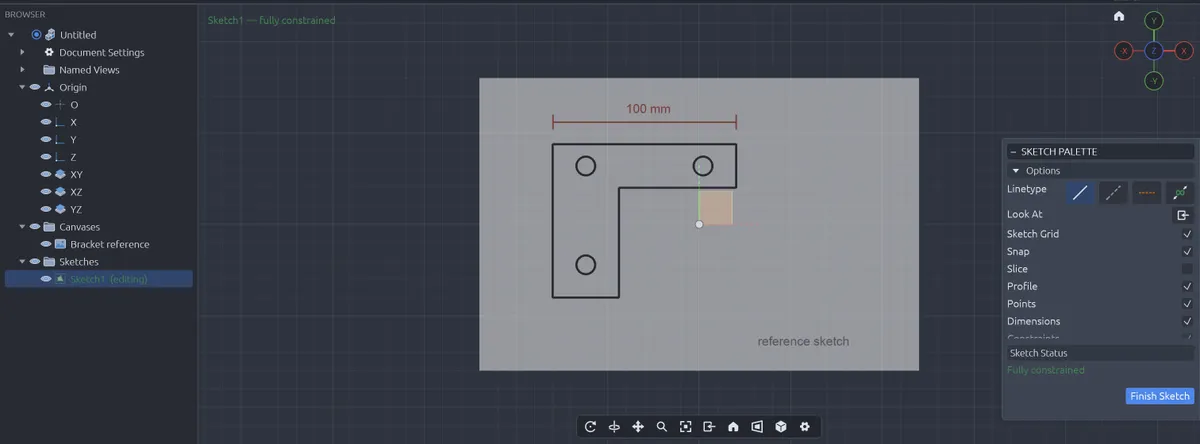
At this point the image is almost never the right size: a 100 mm line on your drawing might measure 40 mm or 250 mm. That's what Calibrate fixes.
3. Calibrate the canvas to real size
Right-click the canvas in the Browser panel and choose Calibrate.
The Calibrate window asks for three things:
- Point A and Point B: two points on the image whose real distance you know, as X and Y on the sketch plane. Use the two ends of a dimension line, the edges of a part of known width, or a ruler in the photo.
- Distance: the real distance between them.
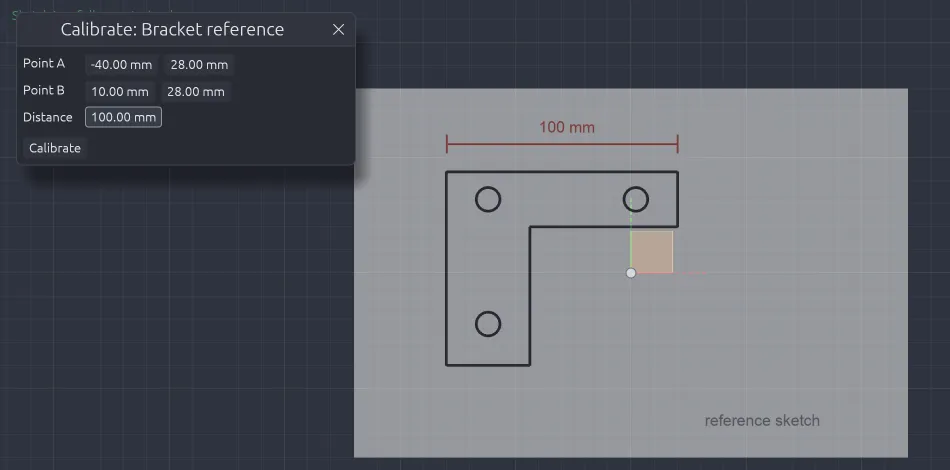
Double-click a field to type a value. Click Calibrate, and the image scales so those two points are exactly that far apart. Point A stays where it is.
In our test the "100 mm" line was really 50 mm long after inserting. After calibrating with Distance = 100 mm, the canvas width went from 120 mm to 240 mm: exactly double, as expected.
Tip: when the window opens, Point A and Point B start at the left and right edges of the image (–60 mm and 60 mm for a 120 mm-wide canvas), which helps you work out where your two reference points sit. Pick points as far apart as possible, because small errors matter less over a long distance.
4. Move, rotate or fade the image if you need to
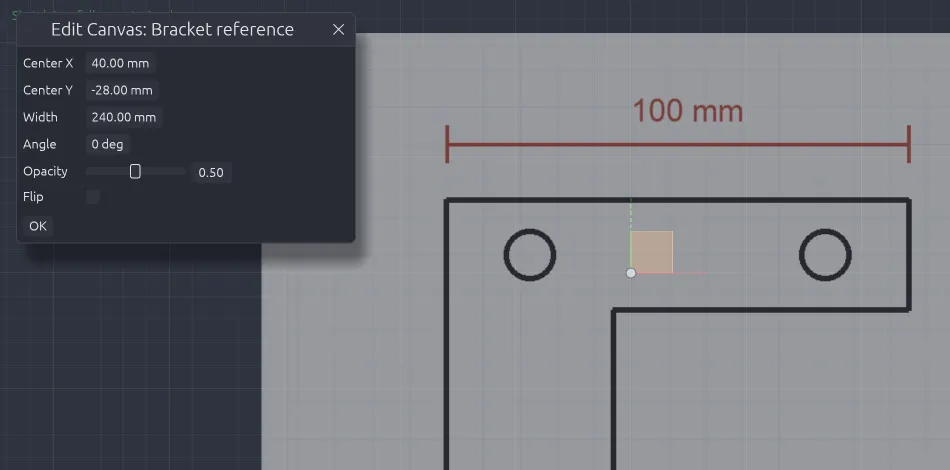
Right-click the canvas › Edit Canvas to fine-tune it:
| Setting | What it does |
|---|---|
| Center X / Center Y | Moves the image on the plane |
| Width | Sets the size directly, if you already know the image's real width |
| Angle | Rotates a crooked photo or scan |
| Opacity | Makes the image fainter or stronger (default 0.50) |
| Flip | Mirrors the image |
5. Trace over it
Now sketch on top of the image with the normal tools: L for lines, C for circles, R for rectangles. Because the canvas is true to scale, what you trace is true to scale too. Add dimensions (D) afterwards to clean up hand-drawn wobbles into exact values.
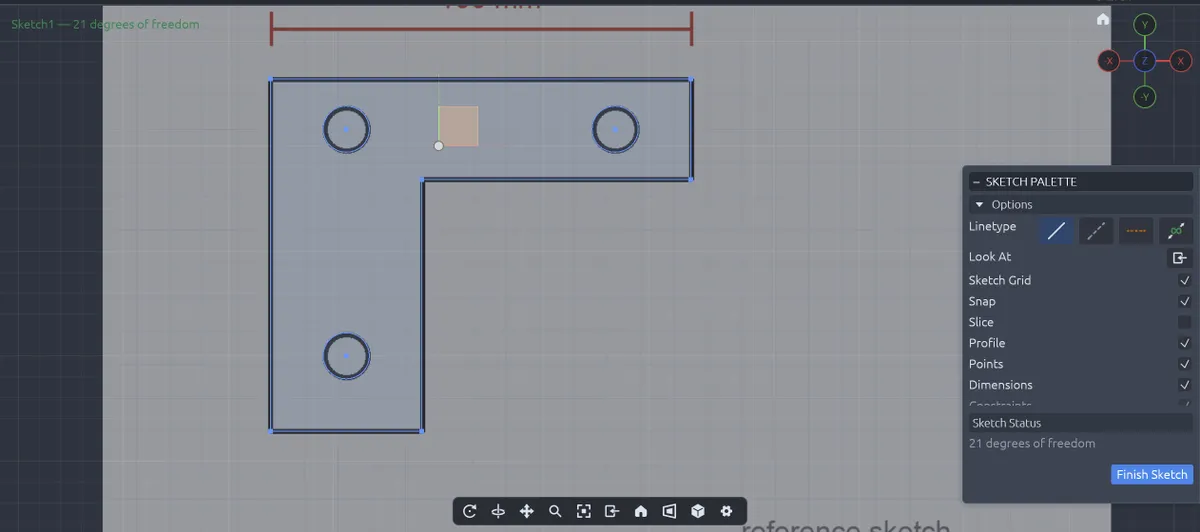
6. Finish the sketch and extrude
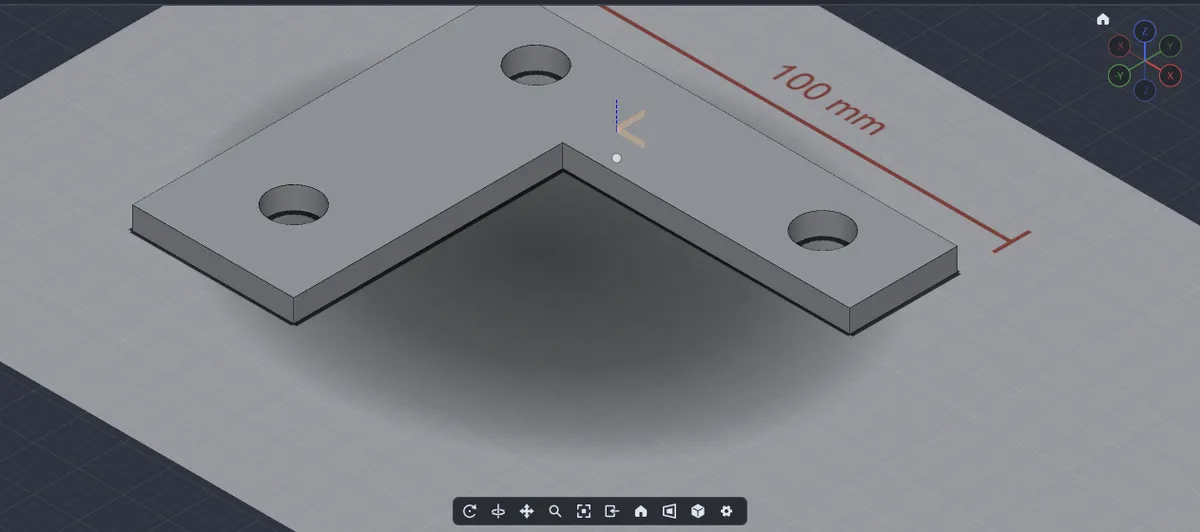
Click Finish Sketch, then Extrude (E) and click inside the outline. Pick the area between the outline and the holes, so the holes stay open. The canvas stays in the design as a reference; hide it with the eye icon next to it, or delete it, when you're done.
Canvas, Decal, or Insert SVG/DXF?
| You have… | Use | Why |
|---|---|---|
| A photo, scan or screenshot (PNG, JPEG) | Canvas | A reference picture to trace over |
| A logo or label to put on a part | Decal | Sits on a flat face of a body |
| A vector file (SVG) or CAD drawing (DXF) | Insert SVG / Insert DXF | Comes in as real sketch curves, no tracing needed |
Need the app first? The SolidCraft download page has every installer, or run it in your browser above. New to sketching? Start with the SolidCraft tutorial.